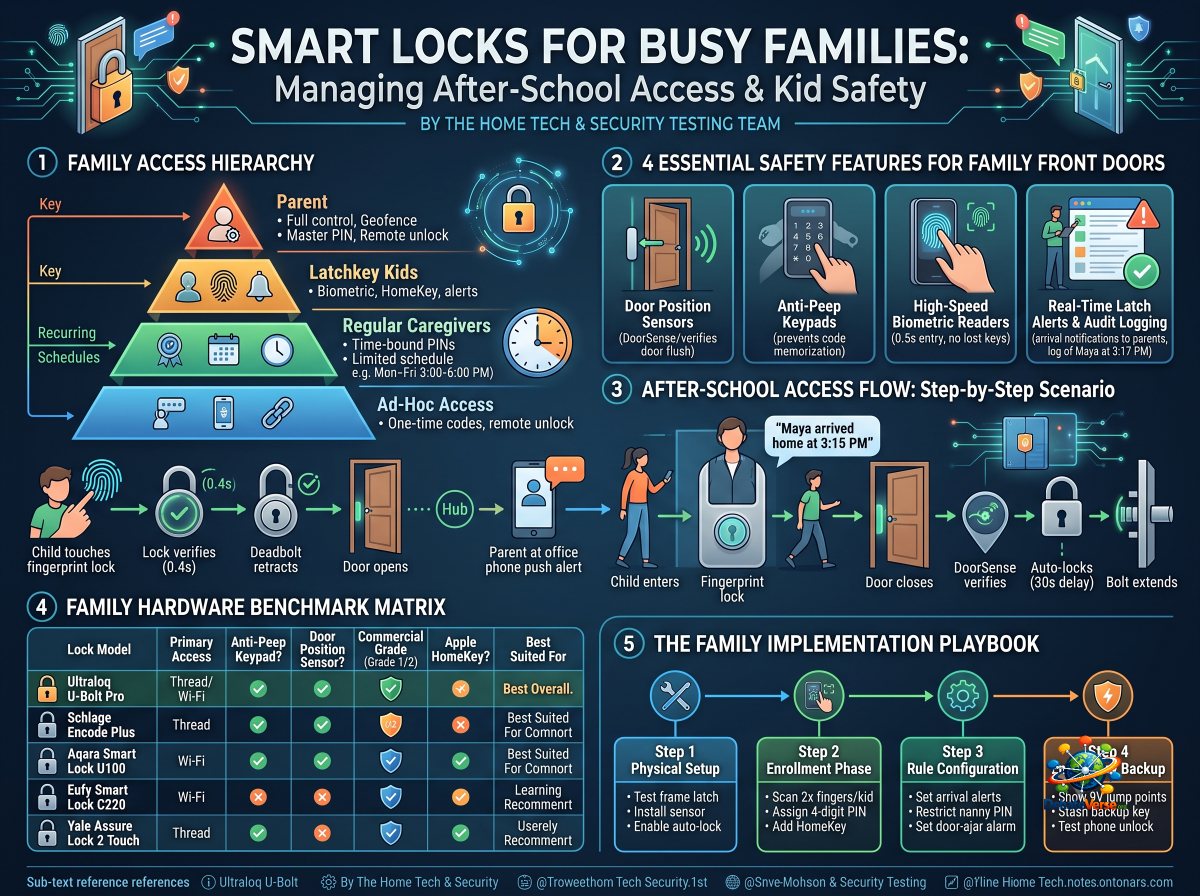
For working parents, the 3:00 PM bell triggers a daily spike in household anxiety. Coordinating after-school dismissals, middle-school latchkey arrivals, babysitters, music tutors, and grandparents requires constant communication—and historically, a risky reliance on hidden physical brass keys.
Hiding a spare house key under the doormat or potted plant is an invitation for trouble, while giving young children physical house keys often leads to lost keys, panicked phone calls, expensive locksmith bills, and compromised home security.
Modern keyless access control completely eliminates the lost key dilemma. By equipping your home's main entry point with smart authentication methods—such as biometric fingerprint scanning, Apple HomeKey wrist taps, scheduled PIN codes, and door-position sensors—parents gain real-time visibility and remote control over who enters the home and when.
Here is our lab's definitive playbook for deploying family-first smart locks that keep kids safe, empower after-school caregivers, and give parents total peace of mind.
1. The Family Access Hierarchy
Managing family access requires establishing granular permission levels. A 9-year-old coming home from the bus stop does not need the same administrative lock controls as a parent, nor should an after-school tutor have 24/7 access to your front door.
Tier 1: Parents & Household Admins
Tier 2: Latchkey Children
Tier 3: Regular Caregivers (Nannies, Tutors, Grandparents)
Tier 4: Ad-Hoc Visitors (Neighbors, Contractors, Delivery)
2. Four Essential Safety Features for Family Front Doors
When shopping for a family-focused smart lock, standard keyless convenience isn't enough. Look for four key safety features engineered specifically for households with children:
1. Door Position Sensors (DoorSense / Magnetometers)
Standard auto-locking features can be dangerous on a family door. If a child comes rushing through the door and leaves it slightly ajar, a standard timer lock will still extend the motor bolt, shooting the steel deadbolt into empty air while leaving your front door wide open.
2. Anti-Peep PIN Code Protection
Children often walk home from school with classmates or neighbors standing nearby. Anti-peep functionality allows your child to enter any random sequence of numbers before or after their actual PIN code (e.g., typing `9382` `4821` `0193` on the keypad). The lock recognizes the embedded `4821` core combination and unlocks, while any onlooker sees only a meaningless string of numbers.
3. High-Speed Biometric Readers
Fingerprint scanners are the ultimate entry vector for kids because a child can never lose, forget, or loan out their fingerprint. Modern capacitive biometric sensors read fingerprints in under 0.5 seconds.
> Parenting Pro-Tip: Children's hands grow rapidly, and their skin texture changes as they play outdoors. Enrolling two different fingers (e.g., left and right index fingers) and re-enrolling your child's prints once a year ensures 100% first-pass biometric accuracy.
4. Real-Time "Latch Alerts" & Audit Logging
The greatest relief for working parents is knowing their children arrived home safely from school. By setting up custom push notifications within Apple Home, Google Home, or native lock apps, parents receive an instant notification:
> "Front Door unlocked by Maya (Fingerprint) at 3:17 PM."
3. After-School Access Flow: Step-by-Step Scenario
Here is how an automated smart lock system handles a typical after-school arrival routine without parent intervention:
4. Family Hardware Benchmark Matrix
The following table compares the leading smart locks evaluated by our testing lab across family-critical usability, security ratings, and access flexibility:
| Smart Lock Model | Primary Access Method | Anti-Peep Keypad? | Door Position Sensor? | Commercial Grade | Apple HomeKey? | Best Suited For |
|---|---|---|---|---|---|---|
| Ultraloq U-Bolt Pro (Thread/Wi-Fi) | Biometric + Keypad | Yes | Yes (Sensor Included) | Grade 1 | Select Models | Best Overall for Kids & Families |
| Schlage Encode Plus | Apple HomeKey + PIN | Yes | Built-in Motor Sensing | Grade 1 | Yes (Native) | Apple Ecosystem Families |
| Aqara Smart Lock U100 | HomeKey + Fingerprint | Yes | Yes (Gyroscope) | Grade 2 | Yes (Native) | Value-Conscious Tech Homes |
| Eufy Smart Lock C220 | Biometric + Keypad | Yes | Yes (Magnetic) | Grade 2 | No | Fast Biometric Entry on a Budget |
| Yale Assure Lock 2 Touch | Fingerprint + Keypad | Yes | Yes (DoorSense) | Grade 2 | Module Dependent | Sleek Keyless Family Entry |
5. The Family Implementation Playbook
Setting up a smart lock for family use requires a balance between strong security and frictionless daily convenience. Follow these four steps during setup:
                  FAMILY SETUP & ONBOARDING ROADMAP

   STEP 1: Physical Setup          STEP 2: Enrolment Phase
   ┌──────────────────────┐        ┌──────────────────────┐
   │ • Test frame latch   │        │ • Scan 2x fingers/kid│
   │ • Install door sensor│ ──────►│ • Assign 4-digit PIN │
   │ • Enable auto-lock   │        │ • Add HomeKey to watch│
   └──────────────────────┘        └──────────────────────┘
                                              │
                                              ▼
   STEP 4: Emergency Backup        STEP 3: Rule Configuration
   ┌──────────────────────┐        ┌──────────────────────┐
   │ • Show 9V jump points│        │ • Set arrival alerts │
   │ • Stash backup key   │ ◄──────│ • Restrict nanny PIN │
   │ • Test phone unlock  │        │ • Set door-ajar alarm│
   └──────────────────────┘        └──────────────────────┘
1. Physical Hardware & Door Alignment
Before enrolling users, ensure your door closes smoothly without needing to pull or push hard on the handle to throw the deadbolt. Friction forces the motor to work harder, draining batteries prematurely and increasing the risk of half-locked jams when kids shut the door quickly.
2. Multi-Finger Biometric Enrollment
When enrolling young children:
3. Configure Time-Bound Caregiver Rules
Never hand out permanent access codes to temporary help. In your lock app or smart home hub:
4. Teach Emergency Jump-Start Procedures
Walk your children through a dead-battery simulation once a year: